How to Block a Customer on Shopify (and When It Works)


How to Block a Customer on Shopify (and When It Works)
Shopify has no single "block this customer" button. You stop a specific customer from ordering again by disabling their account, requiring account login at checkout, or using a third-party blacklist app. A Shopify Flow rule can also automate the response.
I've helped merchants fix their chargeback problem before it starts, and the billing descriptor is always the first thing I check. On my own stores, fixing what customers saw on their statement did more than any alert ever did.
Blocking works the same way once you know its limits. It stops one problem customer in a single settings session, and it does that without turning away the legitimate buyers you still want.
Key takeaways
- Disable the account or add a blacklist app, since Shopify has no block button.
- Disable an account in three clicks in the Customers section of Shopify Admin.
- Require login before checkout to close the guest-order gap a disabled account leaves.
- Set a Shopify Flow rule to auto-cancel or tag orders that match.
- Blacklist apps run $10 to $50 per month, based on the rules you need.
- Nearly 90% of successful disputers do it again, so blocking rarely ends the pattern.
Short on time? Let chargeback alerts catch the disputes blocking misses, automatically, before they file.
How do you block a customer on Shopify?
Shopify has no native "block customer" button, so you stop a specific customer with one of three methods. You disable their account, require login at checkout, or add a third-party blacklist app.
Each method closes a gap the others leave open. If you only disable an account, that person can still guest-check out under a new email. If you only require login, they can still open a fresh account with a fresh email.
Take the three methods in the order the sections below cover them:
- Require login before checkout closes the guest-order gap.
- Disable the customer's account stops that specific login.
- Adjust payment capture gives you a window to review a suspect order.
A blacklist app is the fourth option, covered in its own section further down. Here are the three you can set inside Shopify itself.
1. Require customers to log in before checkout
Requiring account login before checkout stops a blocked customer from slipping through as a guest. A login requirement removes the guest path, so every order now comes from an account you can see and control.
Set it in your Shopify dashboard:
- Go to Admin settings, then Checkout.
- Under customer contact method, set accounts to required.
- Save, then test a checkout to confirm guests are turned away.
This adds friction for every new buyer, not just the one you're trying to block. Turn it on when repeat guest-order abuse is a real pattern, and skip it for a single bad customer.
2. Disable a customer's account
Disabling a customer's account is the closest thing Shopify has to a block, and it takes three clicks. It takes away that account's ability to log in and check out, which stops the specific person you've identified as a problem.
Here's the path in Shopify Admin:
- Open the Customers section in your Shopify Admin.
- Select the customer, then click More actions.
- Choose to disable or delete the customer.
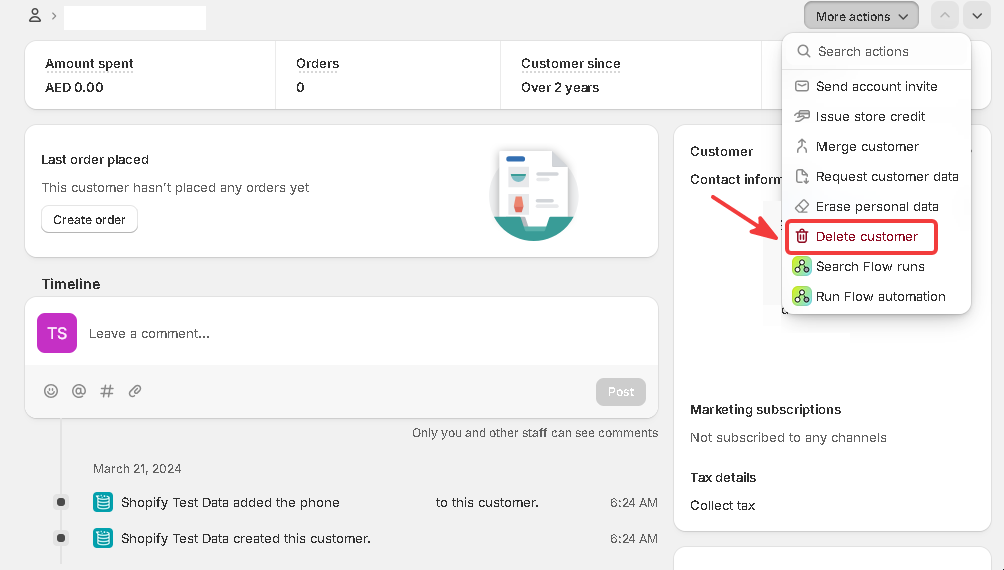
Disabling keeps the order history, so you can still look back at past disputes. Deleting removes the record entirely. Keep the account disabled, not deleted, if that customer has ever filed a chargeback, because you may need the order data as evidence later.
3. Adjust your payment capture settings
Switching payment capture to manual, or to fulfillment-time, gives you a window to review a suspect order first. The setting buys you time to catch an order from a watched customer before it ships. On its own, it blocks nobody.
In Settings, then Payments, set the payment capture method. Set it to capture automatically at fulfillment, or to capture manually. You can cancel a held order before capture if it turns out to be a customer you meant to keep.
One caveat holds this back. A manual-capture backlog is easy to forget, and an order you never capture expires on its own once the authorization window closes. So this only helps if someone actually reviews the queue.
Should you use a fraud-filter app to block repeats?
A third-party fraud-filter app catches the repeat attempts account-level blocking misses, because it blocks the pattern rather than one login. These apps check the order at checkout, before payment goes through. They match each new order against a blacklist database in real time, so they stop a repeat attempt before the order is placed.
The match is what account tools can't see.
Say the same customer comes back under a new email but keeps the same shipping address or card fingerprint. Shopify's own account tools treat that as a brand-new customer, but an app-level blacklist flags the match and holds the order.
Most of these apps let you blacklist by email, IP address, device, or card fingerprint. A few also add velocity rules that flag a burst of orders from one address.
Blacklisting apps on the Shopify App Store mostly run a monthly subscription. The range is $10 to $50 per month, depending on the rule types and order volume you need. Here's how the common blocking criteria compare:
Block criterion
What it catches
What it misses
Email address
Repeat orders under the same email
A new email on every attempt
IP address
Repeat orders from the same network
A customer switching networks or using a VPN
Device fingerprint
Same device across different emails
A different device or a cleared browser
Card fingerprint
Same card across accounts
A new or different card
Shipping address
Orders shipping to the same place
A freight-forwarder or changed address
<style>.wf-table-wrap table{width:100%;border-collapse:collapse}.wf-table-wrap th,.wf-table-wrap td{border:1px solid #ddd;padding:8px 12px;text-align:left}.wf-table-wrap th{background:#f5f5f5;font-weight:600}</style>
<div class="wf-table-wrap" style="overflow-x:auto;">
<table>
<thead><tr><th>Block criterion</th><th>What it catches</th><th>What it misses</th></tr></thead>
<tbody>
<tr><td>Email address</td><td>Repeat orders under the same email</td><td>A new email on every attempt</td></tr>
<tr><td>IP address</td><td>Repeat orders from the same network</td><td>A customer switching networks or using a VPN</td></tr>
<tr><td>Device fingerprint</td><td>Same device across different emails</td><td>A different device or a cleared browser</td></tr>
<tr><td>Card fingerprint</td><td>Same card across accounts</td><td>A new or different card</td></tr>
<tr><td>Shipping address</td><td>Orders shipping to the same place</td><td>A freight-forwarder or changed address</td></tr>
</tbody>
</table>
</div>
A fraud-filter app adds a monthly cost. It can also misfire on legitimate repeat buyers who share a household address or card. So it earns its place once manual blocking has become a recurring task.
If you're weighing which one to run, our Shopify chargeback prevention apps roundup compares the broader category.
How does Shopify's native fraud filter fit in?
Shopify's built-in fraud analysis scores every order as low, medium, or high risk, and it's a separate tool from account-level blocking. Blocking acts on a customer you've already flagged as a problem. Fraud analysis flags orders from customers you've never seen, before you'd have any reason to block them.
It runs automatically on every order at checkout and shows its risk score on the order page. The signals it weighs are the standard card-not-present checks:
- Whether the card passes Address Verification System (AVS) checks.
- Whether the customer entered the correct CVV.
- Details about the IP address the order came from.
- Whether more than one card was tried.
A high-risk flag on a first-time order is the fraud filter doing its job. A mismatched CVV paired with an unusual IP gets caught before you'd ever open that customer's account.
Treat the score as a risk indicator you still have to read. Shopify flags medium and high-risk orders with a warning symbol on the Orders page. But fulfilling a high-risk order without a review can still end in a chargeback, and a low-risk score is no guarantee either.
The filter narrows what you review. It doesn't decide for you.
Automate repeat-offender handling with Shopify Flow
Shopify Flow can automatically tag, hold, or cancel orders that match a rule you set. That way you stop re-checking every order by hand. A workflow runs on a trigger, when an order is created, and checks a condition, whether the order matches your criteria. Then it takes an action, cancel, tag, or restock, with no person in the loop.
Shopify ships two templates that map directly to repeat-offender handling:
- Bad-email cancel: automatically cancel orders that use an email tied to past fraud.
- Frequent-returner cancel: cancel orders for customers who returned five or more times in six months.
Flow only automates a rule you already trust. It won't catch a new bad actor on a new email and IP, with no shared identifier on your list. That's exactly the gap a fraud-filter app's pattern-matching covers. Run Flow for the known offenders and a blacklist app for the ones you haven't met yet.
Temporary ban vs. permanent block: the difference
A temporary ban holds one order for review without touching the account, while a permanent block disables or blacklists the customer for good. A hold pauses a single transaction. Disabling an account or adding a blacklist entry changes every future order from that customer, not just the one in front of you.
Which one you pick depends on how sure you are. Use a hold when an order looks risky but you're not certain yet, through manual payment capture or a Flow rule. Reach for a full block once the same customer has caused a chargeback, a return-abuse pattern, or confirmed fraud.
A hold is reversible in a click. A block is a decision you've committed to.
Will blocking a customer stop chargebacks?
Blocking stops that one customer from ordering again, but it misses the chargebacks you haven't identified yet. It helps for one known repeat offender. The limit is what it acts on, a specific identity you've already flagged, like an account, an email, or a device.
A determined disputer can come back under a new identity your block never sees, a new account, a different card, a fresh email.
In one Chargebacks911 survey, nearly 90% of people who successfully disputed a transaction said they'd do it again, so a second attempt is common. That's why whether banning customers works is a real question.
Blocking also does nothing for the dispute already filed, or for the next buyer who charges back an order you never flagged.
Sometimes blocking is the wrong call. A customer who disputes one legitimate charge, a real shipping delay or a billing error, is not a fraudster. Blocking them removes a paying customer and leaves the fulfillment or billing problem in place. That's a support fix.
It's the same lesson as the descriptor. The cheapest chargeback is the one the customer never had a reason to file.
Blocking can't reach the disputes from accounts you never flagged. Chargeback alerts catch those before they become chargebacks.
Our alerts plug into Ethoca and Verifi to flag an incoming dispute and auto-refund it before it files. That's what catches the disputes a block can't.
FAQ
Can you blacklist a customer on Shopify?
Not with a built-in feature, since Shopify has no one-click blacklist. You approximate one by disabling the account, requiring login, or adding a blacklist app that matches by email or device.
Will Shopify tell a customer they've been blocked?
No, Shopify doesn't send a "you've been blocked" notice. A disabled-account customer just can't log in, and a cancelled order sends your standard cancellation email, so keep it neutral.
How do you block spam customers on Shopify?
Spam with no purchase intent is a contact-form problem, so add CAPTCHA and disable comments instead. Account and checkout blocking only help when the person is trying to place orders.
Can a blocked customer still see your store?
Yes, disabling an account or blacklisting a customer stops them from ordering while they can still browse. Your storefront stays public, so blocking controls checkout and account access while leaving store visibility open.